How to Create a Group
Ready to Group Emails? Here's How to Bundle Your Entire Team (Even Dave) into One Convenient Package:
- Open Google Contacts
- In the left menu, click Create label
- Name your label
- Select the contacts you want to include in the group
- Add the selected contacts to the label you just created
- Use your group in Gmail
Keep reading for more details!
Step 1: Open Google Contacts :
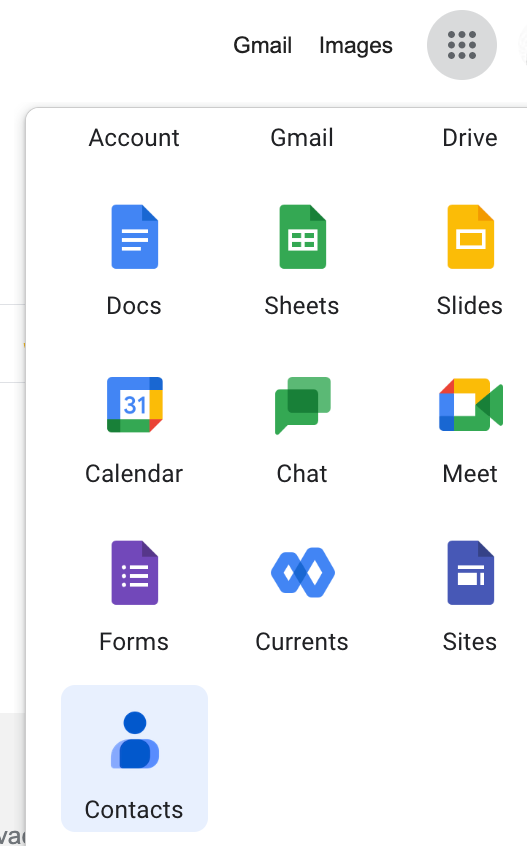
✅ Open up your Google Contacts page by clicking that dot grid by your profile icon on any Google page. Any contacts you or your organization have added or with whom you often communicate will be found here.
Step 2: In the left menu, click Create label :
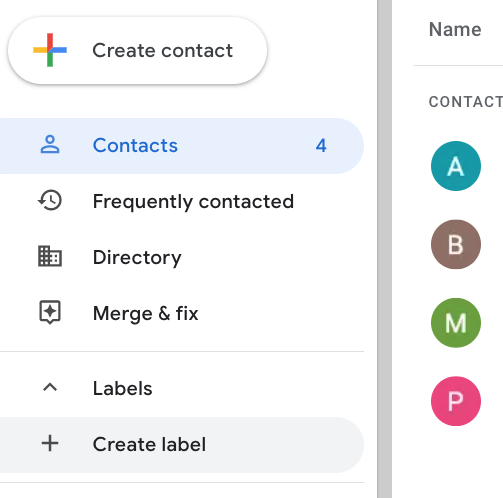
✅ In the left menu/sidebar, you should see a caret called Labels. Open that up to reveal the Create label button, and click that.
Step 3: Name your label
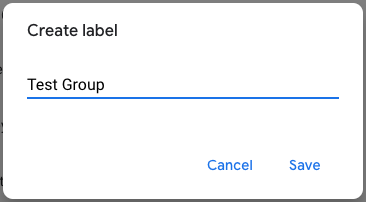
✅ This should bring you to a pop-up prompting you to name the group. Consider something that'll be top of mind for you, like "Marketing Team" or "Everybody Including Dave from Accounting." Save when you're done, and your new label should appear on the sidebar under, predictably, Labels.
Step 4: Select contacts for your group
✅ To find a pool of contacts to add to your new label, you can look to the Contacts, Frequently contacted, or Directory options on the sidebar. To check the boxes next to the ones you'd like to apply your label to, hover over that contact's icon.

Step 5: Add contacts to the label you created
✅ Once you've checked all your desired contacts' boxes, click the label icon above the contact field. This will show you any labels you've already created and give you the option of creating a new one on the fly. Pick your label, and hit Apply to finish.

Step 6: Use your group in Gmail
✅ Now that your label is G2G (good to go, good to Gmail, good to enGage, etc.), it should populate automatically when you want to use it. Just start typing the name in the "To" line of a new email, and it should pop up and show the number of members associated with it. It's as easy as using a Gmail shortcut.

There are no comments for now.
to be the first to leave a comment.